Your Telegram Bot has now been created and configured with the appropriate permissions. Before integrating it into your application or deploying it for production use, it’s a good idea to perform a few simple tests.
Verifying your bot ensures that it can receive commands, respond correctly, and operate as expected in both private chats and group environments.
This final section walks through the verification process, highlights common issues, and answers some of the questions new Telegram Bot developers frequently encounter.
Step 1: Verify Your Telegram Bot
A few minutes of testing can save hours of troubleshooting later.
Work through the following checklist to confirm that everything has been configured correctly.
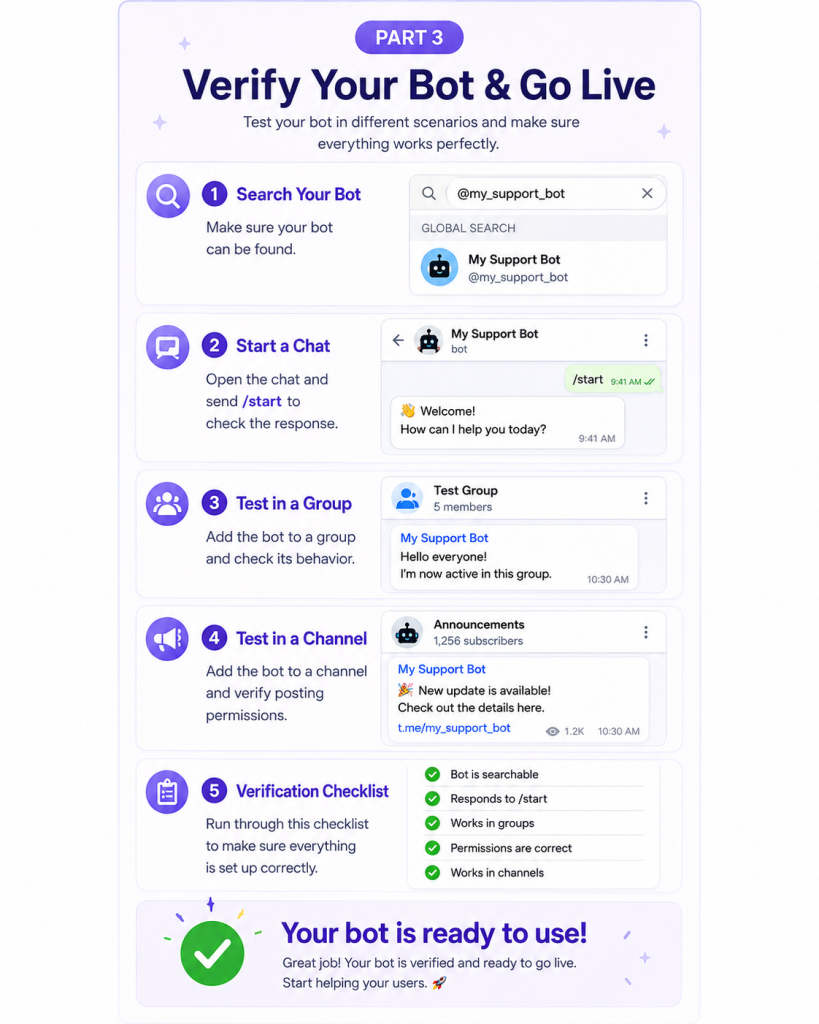
1. Search for Your Bot
Open Telegram and search for your bot using the username you created earlier.
For example:
@my_support_bot
If your bot appears in the search results, your username has been registered successfully.
If you cannot find it immediately, double-check the spelling and remember that usernames are case-insensitive.
2. Start a Conversation
Open your bot’s profile and click Start.
Telegram will send the /start command automatically.
Depending on your implementation, your bot may:
- Send a welcome message
- Display available commands
- Provide a menu
- Respond with custom text
If your bot is not connected to any backend application yet, it may not reply. This is completely normal—the important part is that the conversation can be started successfully.
3. Check the Public Bot Link
Every Telegram bot has a public URL in the following format:
https://t.me/your_bot_username
Open the link in a browser.
You should see your bot’s profile with the option to open it in Telegram.
This link is commonly shared on websites, social media, and documentation, making it easy for users to start interacting with your bot.
4. Test in a Group
If your bot is intended to work inside groups:
- Create a test group.
- Add your bot.
- Assign administrator permissions if required.
- Send several test messages.
Verify that the bot behaves as expected.
For example, confirm whether it can:
- Read group messages
- Respond to commands
- Delete messages
- Pin announcements
- Welcome new members
If the bot cannot see ordinary messages, check whether Privacy Mode is still enabled.
5. Test in a Channel
If your bot is designed to publish announcements or scheduled content, create a private test channel.
Add the bot as an administrator and verify that it can:
- Publish posts
- Edit messages
- Delete messages
- Pin important announcements
Testing in a private channel is much safer than experimenting in a production environment.
Verification Checklist
Before moving to production, make sure each of the following items has been completed.
| Task | Status |
|---|---|
| Bot created successfully | ✓ |
| Username is searchable | ✓ |
| API Token saved securely | ✓ |
| Profile information completed | ✓ |
| Group access enabled | ✓ |
| Privacy Mode configured | ✓ |
| Administrator permissions assigned | ✓ |
| Group testing completed | ✓ |
| Channel testing completed | ✓ |
Completing this checklist helps reduce configuration issues later.
Security Best Practices
Although Telegram bots are easy to create, they should still be managed securely.
Protect Your API Token
Your Bot Token is effectively the password to your bot.
Never:
- Share it publicly
- Commit it to source code repositories
- Include it in screenshots or tutorials
- Send it through unsecured messaging channels
Instead, store it in:
- Environment variables
- Secret management services
- Password managers
- Secure configuration files
If you suspect that your token has been exposed, regenerate it immediately using BotFather.
Grant Only Necessary Permissions
Administrator permissions should always follow the principle of least privilege.
For example:
A notification bot usually only needs permission to post messages.
A moderation bot may require permissions to delete messages and restrict members.
Giving unnecessary permissions increases security risks without providing additional benefits.
Test Before Production
Avoid deploying a new bot directly into an active community.
Instead:
- Create a private test group.
- Create a private test channel.
- Verify every feature.
- Confirm expected behavior before inviting real users.
A controlled testing environment makes it much easier to identify configuration problems.
Frequently Asked Questions
I Can’t Find BotFather
Make sure you search for BotFather exactly as written.
The official account has a verified badge.
If it still doesn’t appear, verify that your network connection allows access to Telegram.
You can also open it directly:
https://t.me/BotFather
My Preferred Username Is Already Taken
Telegram usernames are globally unique.
If your preferred username isn’t available, try:
- Adding numbers
- Adding underscores
- Using a different keyword
- Including your company or project name
Examples:
support_bot_2026

myshop_helper_bot

travelguide_bot
I Lost My API Token
Don’t panic.
Open BotFather and send:
/mybots
Select your bot and choose the option to generate a new API Token.
Remember to update any applications or services that use the old token.
My Bot Doesn’t Respond
There are several possible reasons:
- Your application isn’t running.
- The API Token is incorrect.
- Webhook or polling isn’t configured properly.
- The bot hasn’t received the required permissions.
- Privacy Mode is preventing it from seeing messages.
Start by checking your application’s logs, then verify your bot’s configuration in BotFather.
My Bot Can’t Read Group Messages
This is one of the most common issues for beginners.
Check the following:
- Has the bot been added to the group?
- Is it an administrator (if required)?
- Is Privacy Mode disabled?
- Does it have permission to access group messages?
In most cases, the issue is caused by Privacy Mode still being enabled.
Can I Create Multiple Telegram Bots?
Yes.
There is no practical limitation for most users.
Many developers create separate bots for different purposes, such as:
- Customer support
- Notifications
- Marketing campaigns
- Internal tools
- Community moderation
- Development and testing
Managing multiple bots through BotFather is straightforward.
Final Thoughts
Creating a Telegram Bot is one of the simplest ways to begin building automated messaging experiences on Telegram.
With just a Telegram account and BotFather, you can create a bot, generate an API Token, configure permissions, and prepare it for a wide range of applications—from customer support and community management to notifications and custom integrations.
While the setup process only takes a few minutes, taking the time to configure permissions correctly and verify your bot thoroughly can prevent many common issues later.
As your project grows, Telegram’s Bot API provides a flexible foundation for building increasingly sophisticated automation, making it suitable for both personal projects and enterprise-scale applications.
Whether you’re creating your first bot or expanding an existing Telegram ecosystem, following the best practices outlined in this guide will help ensure a smooth and secure deployment.